Showing posts with label Windows. Show all posts

Monday, 26 August 2013

How to increase video resolution or quality

      Increase resolution or quality of a video

To increase the quality or resolution of a video is not a big deal, all you need is one software i.e video enhancer powered by infognition.com. It is the very light software which converts low resolution video into higher resolution. If you zoom in a video you will find a square shaped frame and blurry video, it can be improved by using video enhancer. In video enhancer each frame re-sizes by taking information from previous format or near by frames which results much clear video. There are more than 200 filters in it which works simultaneously which prevents wastage of time. Moreover all videos can be selected at a time, and processes one by one and obliviously, if you want much better quality you have give time to, there is option available in it speed vs time.


It can be used for various sensitive cases like police case or any personal case i.e it can be used for home purposes or official purposes. If you recorded something with low end device and you want to suspect something, then you can use video enhancer for it to get better resolution video.

Download :-


Download free (demo) :- here
Download from official website :- here

Follow the steps :-

1. Download video enhancer from the link

2. Install it

3. Browse file from input video file or you can multiple select with many files option

4. Adjust the speed or time

5. Select the output folder whatever you want

6. select the frame size whatever you want

7. Select the compression, it depends on your processor which do you have

8. Now start


Read More

Tuesday, 9 July 2013

How to increase RAM

                How to increase ram in laptop or computer


Ram stands for random access memory, it is contained by every computer and even mobile phones. The main motive  of ram is to store temporary memory so that you can access data instantly i.e it will not take time to load, its a volatile memory. Ram are distributed in three series DDR1, DDR2 ,DDR3, the most latest and cheap one  is DDR3. Nowadays DDR2 and DDR1 are not used, it was used 5-6 years ago.

If you are not having video card, the ram consumption will be a lot. The normal ram is considered is 4 GB, if you have below than that, then no need to worry. Ram can be increased without buying new one. 


REQUIREMENTS :-

1. Windows 7 or 8

2. Empty Pen drive


STEPS TO DO :-

1. Insert pen drive in your laptop or computer

2. format it in default, just hit restore default

3. You must have 256 mb free to use

4. Goto my computer

5. open properties of pen drive

6. Goto ready boost tab

7. use ready boost and enjoy


SCREENSHOTS :-


Read More

Monday, 10 June 2013

HOW TO INCREASE TORRENT SPEED

                              Increase torrent speed


Utorrent is a very useful software which is used to download torrent easily from variety of torrent sites. Bitcomet is a another alternative of torrent downlaoder, which can download torrent as well as direct files. Bitcoment and utorrent are most famous torrent downloader for windows, moreover its free of cost. 

Download links :-

1. utorrent developed by WEB API and bitTorrent.org :- here

2. Bitcomet developed by bitcomet.org :- here

Sometime utorrent doesn't provide enough speed to download torrent. It depends on the seeds of the torrent file, the more seeds, the more speed. Sometime due to low seeds it causes torrent file not to download file. To fix this issue, a software name utorrent turbo booster could be very useful. It is a recent plugin. This tool is based on modern technology aiming high transfer rate i.e maximum download speed.

 Only made for utorrent users.


Download link :- 

Turbo booster developed by Download boosters :- here

Features of Utorrent turbo booster :-


1. Automatic clear download torrent search and damaged files

2. Easy to use user interference

3.Auto load on start-up

4. Resumes paused torrent

5. Operable in system tray


Requirments :-


1. utorrent any version
2. Internet connection
3. windows 98/xp/vista/7/8


Read More

Saturday, 8 June 2013

How to take screenshot in laptop or pc

               Take screenshot without using camera

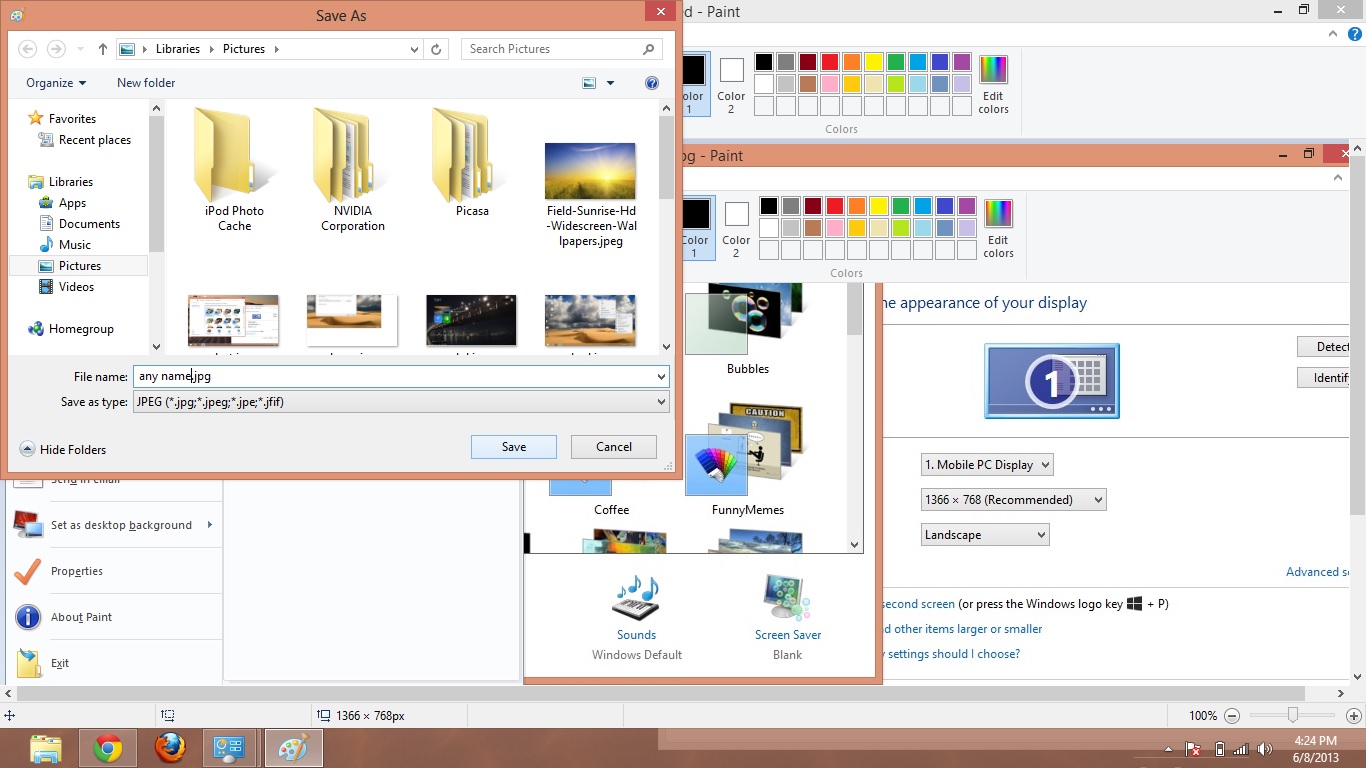
Screenshot of a screen could be very useful in various purposes.  There will be no need of camera anymore, you can take snapshot of a screen with using a single keyboard button. i.e  "prt sc sys rq"


Basically, when you hit the "prt sc sys rq" key, it captures all pixels on your screen that you are watching and converting these captured pixels into image file is not a big deal. That image file can be saved into png, jpeg etc formats. The size of the image totally depends on your monitor, it depends on the pixel of your monitor. If you want full HD screenshot just connect your PC to your TV via HDMI and take a screenshot. Most of the keyboard have  "prt sc sys rq" key, if you don't have just go and upgrade your PC or laptop. 


                      Steps to take a screenshot :-

  1. Select the screen which you want as image
  2. Just simply press "prt sc sys rq" key
  3. Now open paint 
  4. Hit ctrl + v on your keyboard
  5. Now goto files and save as jpeg or png whatever you want
  6. Goto saved location and done :)

                                                     Screenshots


Read More

Tuesday, 4 June 2013

How to get all windows 8 apps in single folder

                     Windows 8 apps in single folder in just few steps

Windows 8 has a lot of apps free or paid, which you can buy from store from metro menu. The available in Metro menu are called metro apps. You can download games, apps related to cookery, finance etc, the only thing you need is to go to store from metro menu.


If you have lot of apps on your menu, it would make your menu complicated and congested. To fix this issue i have a trick to get all windows app in a single folder on desktop. Its a easy trick which can be done within 5 minutes. Now their will no need to open metro again and again.
Just operate your apps from folder.


Just follow the steps and fix this issue :-

1. Create a shortcut on your desktop, by clicking right click on desktop

2. Now just type in their " explorer.exe shell:::{4234d49b-0245-4df3-b780-3893943456e1} ".

3. Change the name whatever you want.

4. Now the short is created on your desktop.


Screenshots :-


Read More

How to uninstall or reset windows 8 apps

           Uninstall windows apps with only few steps.


Windows operating system has a huge value in today's world. It has various version like windows xp, 98 , 7, etc., the latest one is windows 8 which has very cool interference with crisp graphics. Windows 8 do not take a lot ram and processing, it is simple and easy to use. It has rating from 1.0 to 9.9 while windows 7 has 1.0 to 7.9. Windows 8 does not require very high specs PC or laptop, It is very light, it could be easily run in single core processors.


The main feature of windows 8 is METRO UI or start menu, it has very cool customizable  user interference with a lot of apps in as do android and ios have. You can download apps from store which is a separate app (green in color) in windows metro. All apps are not free some are paid and some are available for trial also. What if you install  a lot of apps and you made your metro very complicated and you want to uninstall some unwanted apps ?


Don't worry just follow these steps  : -


1. Hit windows button + q, search option will appear

2. Search powershell, just search don't hit Enter or click on it

3. Now hit ctrl + shift + Enter

4. Now you are using powershell as administrator.

5. Type " Get-AppxPackage -AllUsers "  

6. It will show long list, just ignore it

7. Now type again " Get-AppXPackage | Remove-AppxPackage "

8. It will show some red list, just dont do anything let it complete it. 

9. Now check your start menu.

10. Enjoy.


SCREENSHOTS :-


Read More

Saturday, 18 May 2013

WINDOWS 8 IN ANDROID

                                                            WINDOWS IN ANDROID

Windows 8 app is a launcher, it is compatible with most of the android devices.The animation are adorable and buttery smooth.It got exactly same metro user interference which is used in windows mobile or pc. The tiles are customizable and various colors can be applied on it. It got new lock screen integrated. It doesn't take large amount of ram as other launcher do, its easy to use, could be use in any android device easily. And it is available free on Google play store


FEATURES :-

1.Metro UI
2.Tiles with any color
3.Lockscreen
4.Windows phone statusbar
5.changeble background


INSTALLATION :-


1.No launcher required (go launcher,nova etc)
2.Install apk
3.Run application
4.press home button - choose your default launcher


DOWNLOAD LINK :-

Link :- here


SCREENSHOTS :-


Read More